How to See All Your Subscriptions on iPhone
Your iPhone keeps a list of every subscription billed through your Apple ID. Here is how to find it in about thirty seconds, how to cancel from it, and why it is only part of the picture.
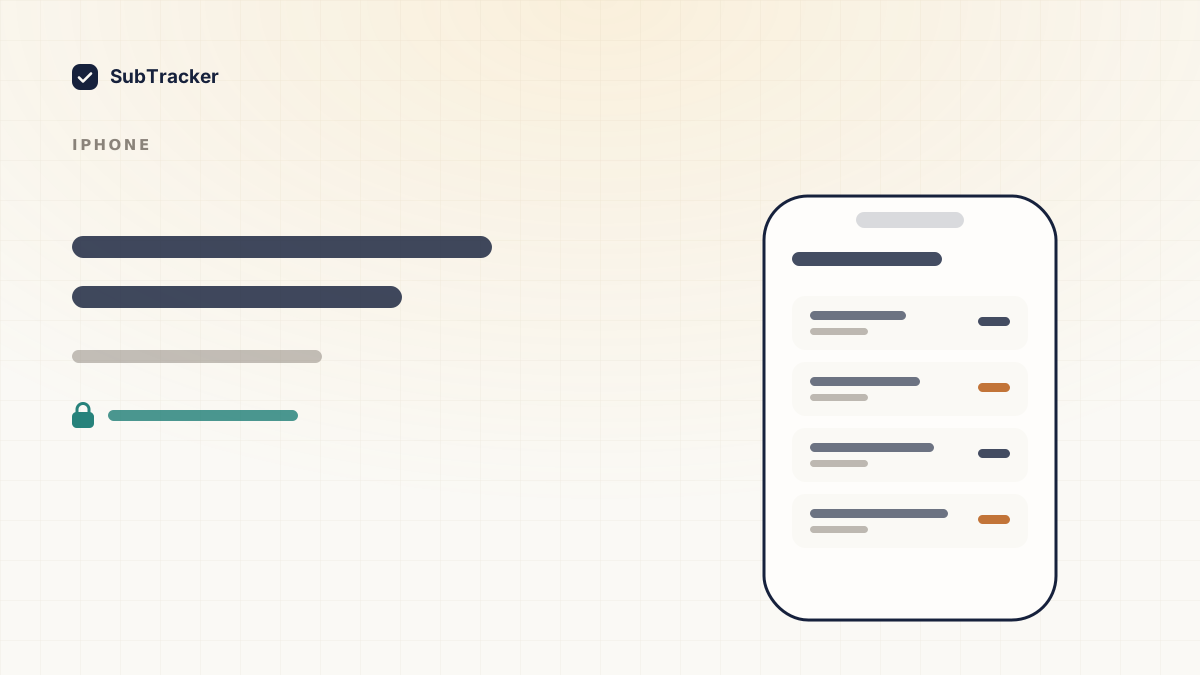
Your iPhone already keeps a list of everything billed through your Apple ID. Most people have never opened it, and it is usually the fastest way to find money you did not know you were spending.
The thirty second version
- Open Settings.
- Tap your name at the very top.
- Tap Subscriptions.
That is the list. Active subscriptions sit at the top with their renewal dates, and expired ones sit below.
If you do not see a Subscriptions row, tap Media & Purchases first, then View Account, then Subscriptions. The exact path shifts slightly between iOS versions, but it always lives under your Apple ID.
You can also get there from the App Store: tap your profile picture in the top right, then Subscriptions.
How to cancel from that screen
Tap any subscription, then Cancel Subscription. If you do not see a cancel option, the subscription is already cancelled and showing you its end date.
Two things worth knowing before you tap.
- You keep access until the period ends. Cancelling does not refund the current month. There is no reason to wait until the last day, and waiting is how people accidentally get charged again.
- Deleting the app does nothing. This is the single most common and most expensive misunderstanding about iPhone subscriptions. The billing lives with Apple, not the app. You can delete an app and keep paying for it for years.
Check the expired list too
Scroll past your active subscriptions and you will find everything you have ever cancelled or let lapse. It is worth reading for two reasons.
It is a decent memory jog for services you signed up for elsewhere and forgot about. And occasionally something sits in the active list that you were certain you had cancelled, which is exactly the charge worth catching.
Do not forget Family Sharing
If you are in a Family Sharing group, subscriptions bought by other members may not appear in your list even though they hit the family payment method. If you are the organiser, you are paying for those.
Check with Settings → your name → Family Sharing to see who is in the group, and remember that each member has their own subscription list under their own Apple ID.
What this list will never show you
This is the important part, and it is why the Apple list alone is not a system.
Your Apple ID list covers subscriptions billed through Apple. It does not cover:
- Anything you signed up for on a website. Netflix, Spotify, Adobe, your gym, most SaaS tools. If you entered a card on a site rather than tapping through an app, Apple never sees it.
- PayPal billing agreements, which are a common hiding place for older subscriptions.
- Charges direct to your card, including annual renewals that hit once a year and are almost impossible to notice.
- Google Play subscriptions, if you have ever used an Android device.
For most people, app store billing is the minority of their subscription spend. The Apple list is a genuinely useful thirty second check, but treating it as the complete picture is how the expensive ones survive.
Getting the rest of the picture
Once you have worked through the Apple list, the remaining charges are scattered across your card statements, your email and PayPal. Working through those by hand is doable, and this guide walks through the process.
The faster route is to have something read your billing emails and assemble the list for you. Every subscription sends a receipt or a renewal notice at some point, which makes your inbox the one place where all of them show up regardless of how they are billed.
Want the full list rather than just the Apple part? Start free and connect Gmail, or upload a statement. Read-only, no bank login.